How to check your website SEO for free: a 10-minute checklist
Published 16 Oct 2026
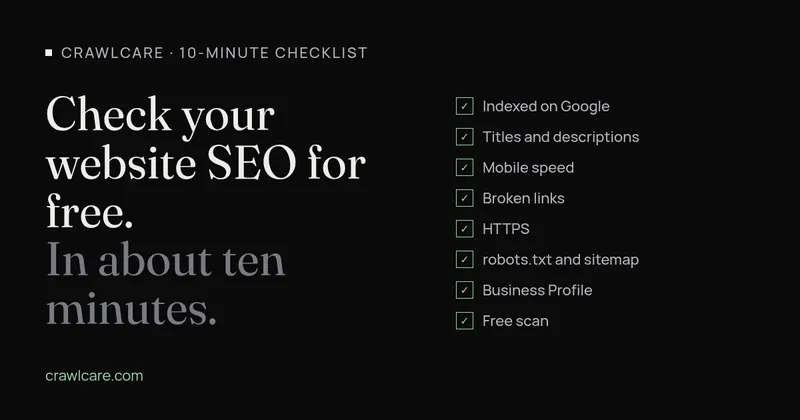
You don't need a paid tool or an agency to find out whether your website has basic SEO problems. Grab a coffee, open your site in one tab and Google in another, and work down this list. Most of it takes a minute or two per step, and you'll end up with a short list of things to fix (or proof that you're fine).
1. Check that Google has indexed you
Search Google for this, using your own domain:
site:yourdomain.com
You should see your home page and your main service pages. If nothing comes up, Google hasn't indexed the site and nothing else on this list matters until that's sorted. Our guide to why a site isn't showing on Google walks through the usual causes.
One caveat: Google says the site: operator doesn't necessarily return every indexed page. Use it as a quick sanity check. For the definitive answer on a single page, the URL Inspection tool in Google Search Console is free and tells you why a page is or isn't indexed.
2. Read your titles and meta descriptions
Look at your own results from step 1. The blue headline usually comes from the page's <title> tag, and the grey text underneath often comes from the meta description. Ask yourself:
- Does each page have its own title, or do they all say "Home" or your company name?
- Does the title use the words a customer would type, like "Electrician in Durban", rather than a slogan?
- Does the description tell someone why they should click?
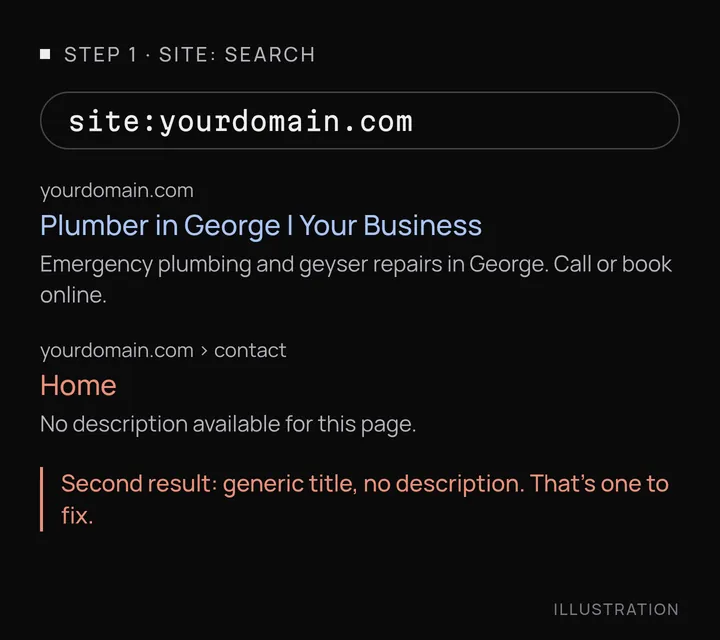
Google may rewrite either one if it thinks something else on the page fits the search better, so treat them as strong suggestions. Google's own guidance on title links and snippets is short and worth a read.
3. Test mobile speed with PageSpeed Insights
Paste your home page into PageSpeed Insights and look at the Mobile tab first. Google uses the mobile version of your site for indexing and ranking (it calls this mobile-first indexing), so that's the version to care about.
The report has two parts. The top section shows real-user data from Chrome, if your site gets enough visitors to have any. The lower section is a lab test that runs once on Google's servers. If you have real-user data, trust it over the lab score. Google's Core Web Vitals thresholds for a good result are a Largest Contentful Paint of 2.5 seconds or less, an Interaction to Next Paint of 200 milliseconds or less and a Cumulative Layout Shift of 0.1 or less.
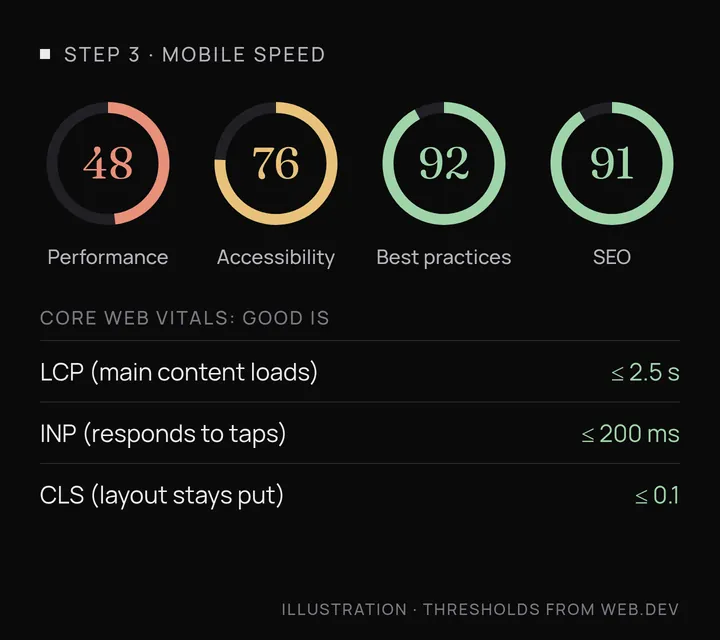
A red score here usually means big images, too many plugins or slow hosting. Our guide to slow websites and the one on fixing Core Web Vitals go into the fixes.
Short on time? The free CrawlCare scan runs a Lighthouse speed test and checks your title, description, headings, robots.txt, sitemap and HTTPS in one go. You enter your web address and an email, and it shows the report on screen and emails you a copy.
4. Look for broken links
Click through every item in your main menu and footer on your phone. It's boring, but it catches the obvious stuff: a "Contact" page that was renamed, a service you dropped, a PDF that's gone. A link that lands on a "page not found" error is a dead end for a customer and for Google's crawler.
If your site has more than a handful of pages, a crawler will do it faster. The free version of Screaming Frog SEO Spider crawls up to 500 URLs and lists every link that returns a 404. If you've set up Search Console, the Pages report also lists URLs Google tried to fetch and got "Not found (404)".
5. Confirm HTTPS works everywhere
Type your address with http:// (no "s") into the browser. It should jump straight to the https:// version with a padlock in the address bar. Try it with and without www as well. All four versions should end up at the same secure address.
If Chrome shows "Not secure" next to your address, visitors see that too. One of the self-check questions in Google's page experience guidance is whether your pages are served securely. Many hosts include a free certificate, so this is often a setting rather than a purchase.
6. Check robots.txt and your sitemap
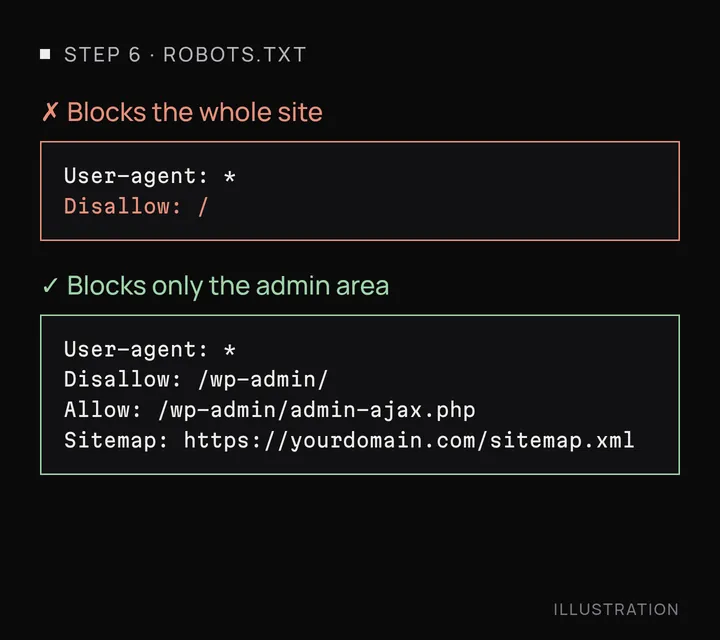
Open yourdomain.com/robots.txt. If you see Disallow: / under User-agent: *, you're telling every search engine to stay off the whole site. That line often gets left behind when a site moves from staging to live. A robots.txt that's empty, missing or only blocks admin folders is fine. Google explains the rules in its robots.txt introduction.
Then look for a sitemap. Try yourdomain.com/sitemap.xml. On WordPress, the built-in one is at /wp-sitemap.xml, and Yoast uses /sitemap_index.xml. It should list your real pages, not test pages or old ones you deleted. Google's sitemap overview covers when you need one and how to submit it.
7. Look at your Google Business Profile
If you serve customers in a particular area, search your business name on Google and on Google Maps. You want a profile showing up with the right address or service area, phone number, hours, website link and category.
No profile? You can create one free at Google Business Profile. Already have one? Check it's verified and that the details match your website exactly. Google says local results depend mainly on relevance, distance and how well-known the business is, and its tips to improve local ranking start with complete, accurate information.
8. Know when to stop checking and run a scan
Steps 1 and 7 need you, because they're about what Google shows. The technical checks in between are where people get stuck, especially when PageSpeed throws a list of warnings you don't recognise.
That's what the free CrawlCare scan is for. Put in your address and it checks speed and Core Web Vitals with Lighthouse, reads your title, meta description and headings, looks for your robots.txt and sitemap, tells you whether the page allows indexing, tests a sample of your internal links, and checks HTTPS and security headers. You get a plain-language report with what to fix first. If you'd rather not do the fixing yourself, you can ask us to do it from the same report.
The 10-minute checklist
- Search
site:yourdomain.comand confirm your main pages appear. - Read your titles and descriptions in those results.
- Run the home page through PageSpeed Insights on mobile.
- Click every menu and footer link.
- Try the
http://andwwwversions of your address. - Open
/robots.txtand your sitemap. - Search your business name on Google Maps.
- Run the free CrawlCare scan for the technical bits.