WordPress repair
“There has been a critical error on this website”: how to fix it
You open your site and get one line of text, or a blank white page. Often wp-admin is gone too. One owner on the WordPress.org forums put it plainly in October: "For several days, the homepage has been returning an HTTP 500 Internal Server Error." The same week, owners posted the identical problem in Turkish and Japanese.
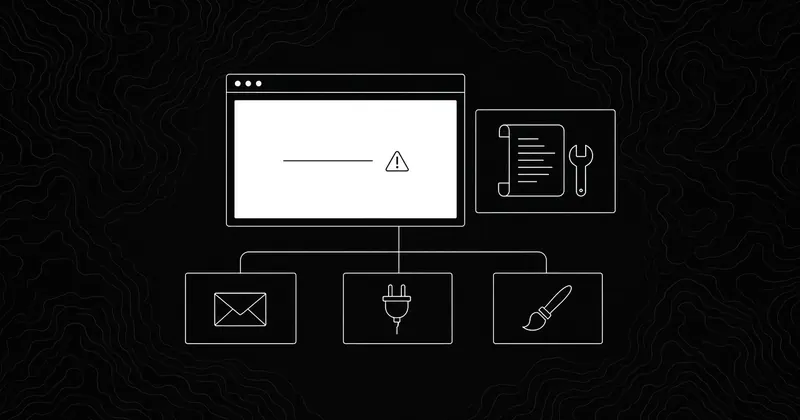
The message, the blank page and the bare 500 error usually come from the same place: PHP hit a fatal error and WordPress stopped. Your content is almost always still there.
01
What the message means
The WordPress Common Errors page says the critical error message "indicates that something in your site has caused a critical error that prevents WordPress from running as expected." It names the usual causes: plugin conflicts, theme compatibility problems, an incompatible PHP version, the memory limit, or corrupted WordPress files.
The same page explains the blank page. Both PHP errors and database errors can show up as a white screen with no information, which people call the White Screen of Death.
02
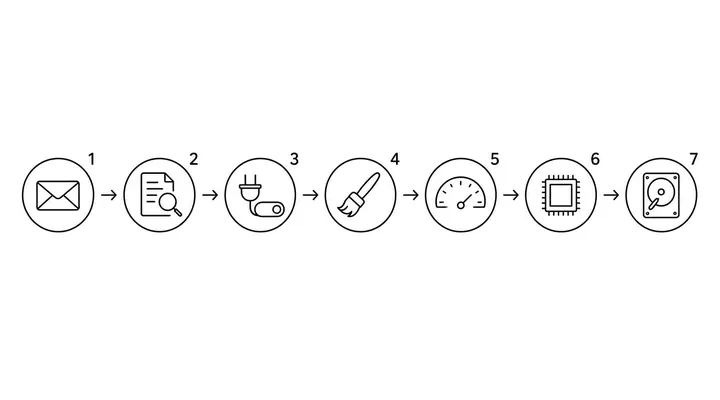
Step 1: check the admin email inbox
Since WordPress 5.2, a fatal error triggers recovery mode. WordPress emails the site's admin address with the plugin or theme that failed and a special login link. That link lets you into wp-admin with the broken extension paused, so you can deactivate or update it.
Look in spam as well. If the admin email points at an old address, or the site can't send mail, the message never arrives. Our free email security check shows whether your domain's mail setup is likely to land in spam.
03
Step 2: turn on the debug log
If there's no email, the error log tells you what broke. The official guide to Debugging in WordPress uses three constants in wp-config.php. Add these above the line that says /* That's all, stop editing! */:
define( 'WP_DEBUG', true );
define( 'WP_DEBUG_LOG', true );
define( 'WP_DEBUG_DISPLAY', false );
Reload the broken page, then open wp-content/debug.log over FTP or your host's file manager. The last "PHP Fatal error" line names a file. If the path contains wp-content/plugins/some-plugin/, you've found your suspect. Set WP_DEBUG back to false when you're done, since the log can fill up and it shouldn't stay public.
Your host's own PHP or Apache error log often shows the same line. The owner in the HTTP 500 thread above posted a message that kept repeating in the Apache log.
04
Step 3: disable plugins without wp-admin
Common Errors gives the FTP method: go to wp-content, rename the plugins folder to plugins_old, and every plugin is deactivated. If the site comes back, rename the folder back, then rename single plugin folders one at a time until it breaks again.
With SSH and WP-CLI it's quicker:
wp plugin deactivate --all --skip-plugins --skip-themes
wp plugin activate plugin-name
The --skip-plugins flag stops the broken plugin loading while WP-CLI runs.
05
Step 4: switch to a default theme
If plugins aren't the cause, test the theme. Over FTP, rename your active theme's folder in wp-content/themes/. WordPress falls back to a default theme if one is installed. With WP-CLI:
wp theme activate twentytwentyfiveThe command reference covers the options. Rename the folder back once you've confirmed the cause.
06
Step 5: check the PHP version
A host upgrade or a manual switch in the control panel can leave old plugins on a PHP version they don't support. The reverse also happens. The WordPress requirements page currently recommends PHP 8.3 or greater. If the error started right after a PHP change, switch back in the control panel, get in, update everything, then try the newer version again.
07
Step 6: raise the memory limit
If the log says "Allowed memory size of ... bytes exhausted", PHP ran out of memory. The wp-config.php documentation says WP_MEMORY_LIMIT is meant for exactly this message, and that WordPress tries for 40MB on a single site by default. Add a higher value:
define( 'WP_MEMORY_LIMIT', '256M' );Your host may cap PHP memory below that. If so, the setting does nothing and you'll need to ask them.
08
Step 7: look past PHP
Two things in the forum thread are worth checking on any 500 error. That owner's disk usage was 1020 MB of a 1000 MB limit, and a WordPress auto update had failed. A full disk can stop PHP writing sessions and cache files. A failed update can leave core files half replaced. If core files look damaged, re-upload fresh copies of wp-admin and wp-includes from the same WordPress version, leaving wp-content and wp-config.php alone.
If none of this explains it, or the log shows files you don't recognise, read is my WordPress site hacked? before you go further.
09
Sources
- WordPress.org support forum, "WordPress HTTP 500 Error: Website and Admin Login Unavailable"
- WordPress.org support forum, Turkish critical error thread
- WordPress.org support forum, Japanese critical error thread
- Common WordPress Errors
- Debugging in WordPress
- Fatal Error Recovery Mode in 5.2 (Make WordPress Core)
- wp-config.php, increasing memory allocated to PHP
- WP-CLI plugin deactivate
- WP-CLI theme activate
- WordPress requirements
Free scan
Want a second pair of eyes?
Run a free CrawlCare scan. It checks your site from the outside and tells you which pages are failing. If you'd rather talk it through, open the chat and describe what you see.
Talk to us