Google says "This site may be hacked": what it means and how to clear it
Published 28 Oct 2026
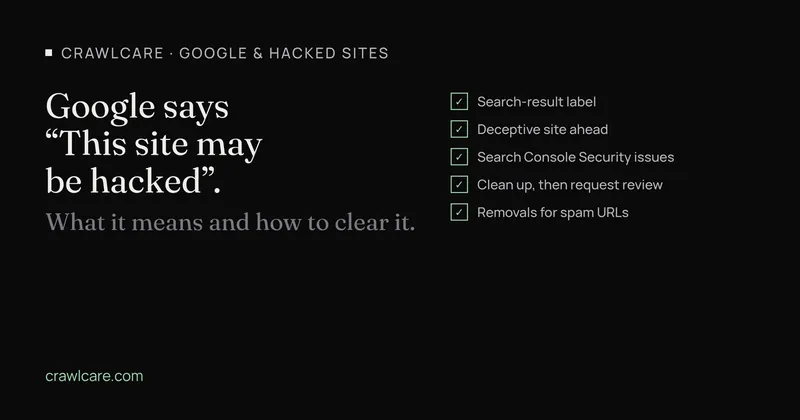
You searched your own business and Google stuck "This site may be hacked" under the result. Or Chrome hit you with a red "Deceptive site ahead" page. Or Search Console emailed you about Security issues. Three different surfaces, one underlying mess. This guide is about reading which one you're looking at, checking the site yourself, cleaning it, and asking Google to take the warning off.
If you only came for the warning label and want a second pair of eyes on the public site first, jump to the free scan.
What each Google warning actually means
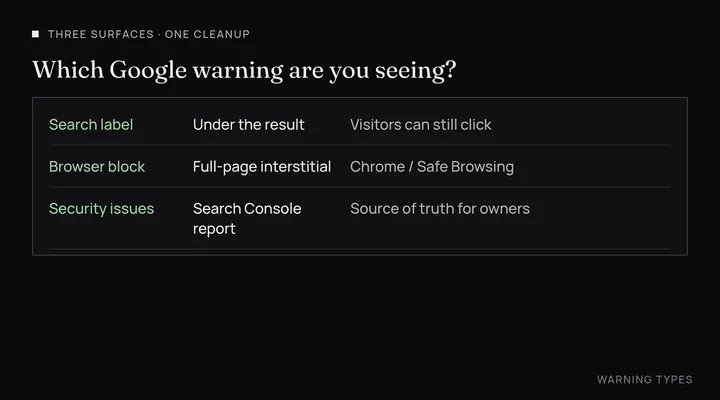
"This site may be hacked" under a search result
That line sits under your listing in Google Search. Visitors can still click through, but a lot won't. Google is saying the page (or the site) looks compromised: spam pages, injected content, or other hacked content that shouldn't be there. Owners usually learn about it from a client, a friend, or their own site: search.
The red "Deceptive site ahead" / Safe Browsing screen
This one is louder. Chrome (and other browsers that use Google Safe Browsing) block the visit with a full-page interstitial. People who type your URL, open a bookmark, or follow a link all see it. Search Console's Security issues report is the source of truth for whether Google still thinks you have a problem, even when you can't reproduce the warning yourself — Safe Browsing warnings depend on browsing context.
Search Console → Security & Manual Actions → Security issues
If the property is verified, this is where Google lists the categories it found: hacked content, malware / unwanted software, or social engineering (phishing-style pages). Expand an issue for sample URLs and the date it was first detected. Fix every listed issue across the site before you ask for a review — Google says fixing only some pages is not enough.
Manual Actions are a separate report. A manual spam penalty is not the same as a Security issues hack flag, even though both can wreck visibility. This post is about the security side.
Quick checks you can do in the next ten minutes
Do these before you rewrite anything. Stop and clean up the moment you find spam.
- Open Search Console → Security & Manual Actions → Security issues. If there's a green check, Google currently sees no security issue for that property. If there are issues, note the categories and sample URLs — you'll need them for the review request later.
- Search
site:yourdomain.com. Scroll a few pages. Look for titles you never wrote, Japanese or other foreign-language keyword pages, pharmacy / loan / fake-shop landing pages, or odd subfolders. Google's site: operator is a quick check, not a complete inventory. - Visit like a stranger. On your phone, turn off Wi-Fi, open a private tab, search for your business name and tap your own result. Cloaked spam often redirects people who arrive from Google on mobile and skips logged-in admins. If you land somewhere that isn't your site, you've found it.
- Check Safe Browsing and an outside scanner. Look the domain up on Google's Safe Browsing transparency report and run it through Sucuri SiteCheck. An entry in either is a signal, not a full clean bill of health.
Still unsure what the public site looks like from outside? Run the free CrawlCare scan — it checks HTTPS, security headers, mixed content and the plugin versions it can see. It does not replace a file-level malware scan.
Clean the site first (don't skip this)
Google will not clear a warning while the spam or malware is still live. The cleanup steps are the same ones in our hacked WordPress check: full backup as-is, change every password, remove unknown admins, replace core / plugins / themes from clean sources, purge PHP from uploads, scrub the database, rotate security keys, then scan again.
Two extras that matter for Google's view of the site:
- Make spam URLs return 404 or 410. Deleting the content isn't enough if the URL still serves a soft 200 with a "not found" template. Google's Removals tool docs say a temporary removal expires if the URL is unreachable when you request it — and any page that later appears at that URL is treated as new. So delete (or 410) the spam, then use Removals if you need it out of results quickly.
- Fix how they got in. Updating plugins after a cleanup without removing the backdoor usually means they walk straight back in. If the site keeps getting reinfected, something on the server is still open.
Japanese keyword hacks and spam-redirect campaigns are the same problem: injected pages or redirects aimed at search traffic. Treat them as hacked content, not as an SEO quirk.
How to get the Google warning removed
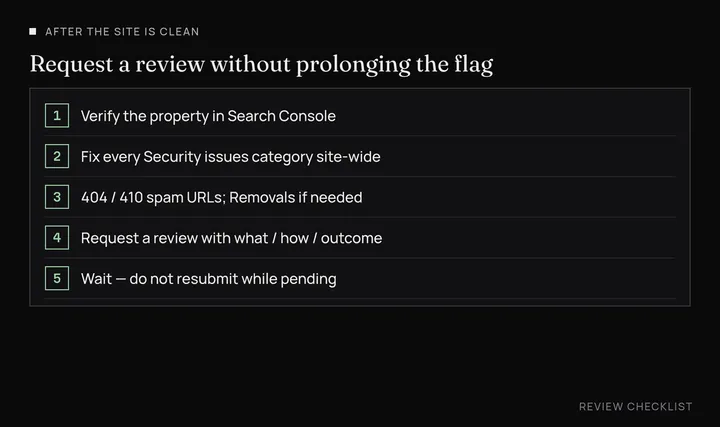
Only ask for a review after the site is clean and the vulnerability is closed. Google's own request a review guide is blunt: requesting a review while the problem still exists prolongs the flag.
Request a review in Search Console
- Verify the property in Search Console if you haven't already.
- Open the Security issues report.
- Confirm every listed issue is fixed on all affected pages (use the sample URLs as a starting point, not a complete list).
- Select Request a review.
What to write: Google wants three things — what the issue was, what you did to fix it, and the outcome. Be specific. Example shape (adapt to your case):
The site had hacked content injection on spam URLs under /xx/ and a redirect on mobile Google referrals. I removed the injected pages (now 410), cleaned wp-content/uploads of PHP backdoors, replaced themes and plugins from official sources, removed two unknown admin users, rotated all passwords and WordPress salts, and updated the vulnerable plugin that let them in. I re-scanned with [tool] and the sample URLs in Security issues now serve clean content.
For phishing / social engineering flags, Google also lets you submit at google.com/safebrowsing/report_error/ after cleanup.
How long does the review take?
Use Google's numbers, not ours. From web.dev's request-a-review article:
- Hacked with spam: reviews can take up to several weeks (manual investigation or a full reprocess of the hacked pages).
- Malware / unwanted software: a few days; the response shows up in Search Console Messages.
- Phishing: about a day.
- If Google finds the site clean, browser and search-result warnings are removed within 72 hours.
Don't resubmit while a review is pending. If the request is rejected, Google may add more sample URLs — work through those, then request again.
Removals tool for leftover spam URLs
After the pages are gone (404/410), use Search Console's Removals tool under Temporary Removals → New Request → Temporarily remove URL if you need them out of results sooner. Google says a successful temporary block lasts about six months; permanent removal means the URL stays 404/410, password-protected, or noindexed on your side. Don't block with robots.txt alone.
Rather not do this yourself?
Fair enough. Our Hack Rescue service is built for this: remove the malware, restore a clean copy, harden the site, then help with the Search Console review request. We take a backup before we touch anything. Prices are on the pricing page; you can book Hack Rescue here.
Quick answers
Does "This site may be hacked" mean my rankings are gone forever?
No. It means Google is warning people and may be filtering hacked content. Once the site is clean and a Security issues review succeeds, Google says browser and search warnings come off within 72 hours. Rankings recovering is a separate, slower process.
I cleaned the site but Search Console still shows Security issues. Why?
The report stays until Google accepts a review. Fix everything listed, then Request a review. Sample URLs are examples, not the full set — clean the pattern site-wide.
Chrome shows Deceptive site ahead but Search Console is green. Who do I trust?
Google says rely on the Security issues report as the source of truth. Safe Browsing warnings can depend on browsing context, so you may not reproduce what a visitor sees. If the report is green and a review was approved, give it the 72 hours Google quotes for warnings to clear.
Can I just use the Removals tool instead of cleaning?
No. Removals only hides URLs temporarily. If the spam or malware is still on the server, Google will keep finding it, and the temporary block expires in about six months.
Will the free CrawlCare scan clear the Google warning?
No. The scan looks at your site from outside (speed, SEO basics, HTTPS, visible plugin versions). Clearing a Security issues flag needs a clean server and a successful review in Search Console.
Sources
- Search Console Help: Security issues report (checked 28 Oct 2026)
- web.dev: Request a review (checked 28 Oct 2026) — review timing by category and the 72-hour warning-clear window
- Search Console Help: Removals and SafeSearch reports tool (checked 28 Oct 2026)
- Search Console Help: Remove information on your website from Google (checked 28 Oct 2026)
- Google Safe Browsing transparency report
Further reading
- LiteSpeed Cache 7.9.2: check for CVE-2026-113499 and friends
- Is my PHP version end of life? How to upgrade WordPress
- PHP2Shell: what PHP's emergency release means for your site
- Core Web Vitals assessment failed: what it means and how to pass
- UpdraftCentral hack: is your WordPress site affected?
- Rank Math PRO 3.0.123, Backuply and Everest Backup: is your site affected?
- AIOSEO and Bricksforge security updates: is your site affected?
- Why is my website slow?
- How to fix Core Web Vitals
- Why isn't my site showing on Google?
- How to check your website SEO for free: a 10-minute checklist
- Is your site slow because of the code or the distance? Hosting for South African sites
- Is my WordPress site hacked? A step-by-step check