How to remove malware from a WordPress site (step by step)
Published 1 Nov 2026
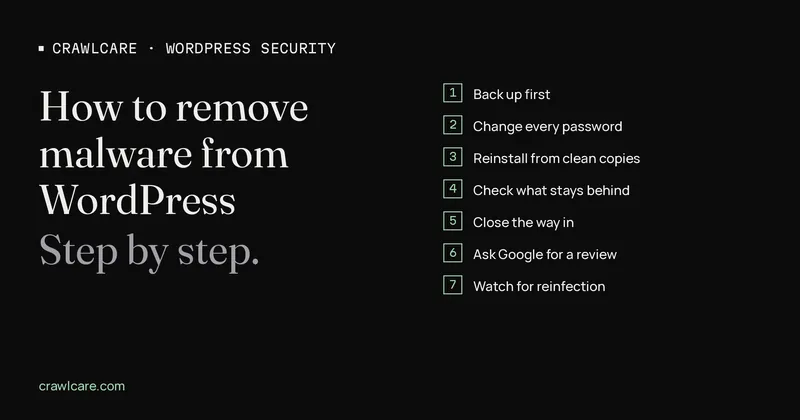
To remove malware from WordPress: back up the site as it is, lock everyone out and change every password, replace core, plugins and themes with clean copies, check the places a reinstall doesn't touch, close the hole they used, then ask Google for a review. Below is each step in order.
Not sure the site is hacked yet? Start with how to check if your WordPress site is hacked, then come back here.
1. Take a full backup first
Before you delete anything, copy the files and the database as they are now, infection and all. WordPress.org's hacked-site FAQ says to take this snapshot even though it's infected, and Google's clean-up guide says to label the copy "infected" and keep it apart from your clean backups. You'll want it later to compare files, recover a post you lost or work out how they got in.
Download it to your own computer or another account. A copy that sits on the same hosting account can be changed by whoever is in there.
If you have an older backup, check its date. Google's guide is clear that it only helps if it's from before the hack.
2. Put the site in maintenance mode and change every password
Google's quarantine guide suggests taking the site offline while you work, so visitors stop getting served bad content. A maintenance page from your host or a simple holding page does the job.
Then change every way in. WordPress.org lists them: hosting control panel, FTP or SFTP, the database user, and every WordPress admin account. Turn on two-factor login where you can. WordPress.org adds one more thing: scan your own computer too, since a password stealer on your laptop undoes all of this.
Last, replace the security keys and salts in wp-config.php. WordPress.org says new keys log everyone out, attacker included. You can get a fresh set from the WordPress.org salt generator.
3. Reinstall WordPress, plugins and themes from clean copies
Don't try to clean infected core files line by line. Replace them. WordPress.org's FAQ says to download a fresh copy from wordpress.org and replace /wp-admin and /wp-includes over SFTP. The re-install button in the dashboard can leave extra files the attacker added. Google says the same thing more broadly: do a clean install, not an upgrade, because an upgrade can leave infected files in place.
Do the same for plugins and themes. Delete each folder and install a fresh copy from WordPress.org or the developer's own site. Paid plugins come from your account with the developer. While you're at it, delete any plugin or theme you don't use. WordPress's hardening guide points out that unused code is still code someone can attack.
Your posts, pages and uploads live in the database and wp-content/uploads, so swapping these folders doesn't touch your content.
4. Check what a reinstall leaves untouched
This is the step people skip, and it's usually why a hack comes back. Fresh core and plugin files don't replace anything outside those folders, and they don't touch the database.
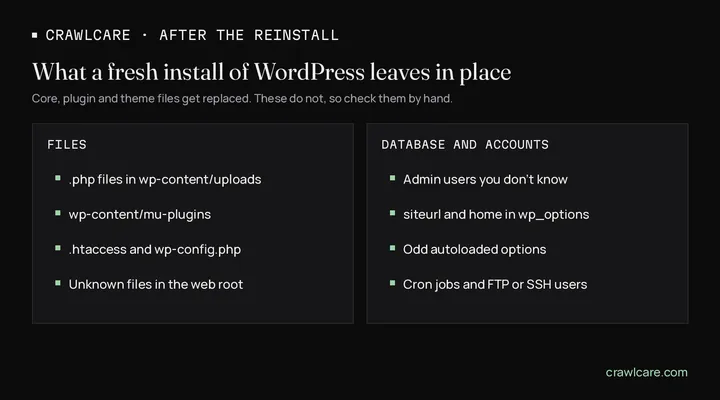
- PHP files in
wp-content/uploads. That folder should hold images and documents. Sucuri's guide names uploads as a common hiding place for backdoors. wp-content/mu-plugins. WordPress loads every file in there on its own, and they don't show in the normal plugin list. If you didn't put something there and your host didn't either, find out what it is.- Admin users you don't know. Sucuri says attackers often add admin and FTP users so they can come back. Check WordPress users, hosting FTP and SSH accounts, and database users.
siteurlandhomeinwp_options. They should be your own address. While you're in that table, look over the autoloaded options for scripts or domains you don't know..htaccess. Google's malware guide shows how hacked server config files send visitors to other sites. WordPress.org also lists it among the files to check.- Cron jobs. Look at scheduled tasks in your hosting panel for anything you didn't set up.
- Unknown files in the web root, next to
wp-config.php. Compare the folder with a fresh WordPress download, and checkwp-config.phpitself for added code.
Not sure about a file? Move it out of the web root rather than deleting it, and keep a note of where it was.
5. Find and close the way in
Clean files won't stay clean if the door is still open. Google's recovery guide gives it a whole step, and WordPress.org says to do some forensics once the site is clean. The usual ways in, going by Google and WordPress's own guides:
- An outdated plugin or theme. WordPress's hardening guide says most attacks go after old software. Our free WordPress plugin check lists the plugin versions anyone can see from outside and flags any that match a known security issue.
- A nulled plugin or theme, meaning a pirated copy of a paid one. WordPress says to only get code from trusted sources. Remove these, then buy or replace them.
- A weak or reused password. Google lists these as a common cause. Step 2 already fixed them; keep two-factor login on.
- Old PHP. WordPress recommends keeping server software up to date. Our free PHP version check shows which version your site gives away, if any.
Your host's access logs can show which file or URL the attacker hit first. Ask your host for them if you can't see them yourself.
6. Ask Google for a review
If Google flagged the site, the warning won't lift on its own. Open the Security issues report in Search Console, tick that you've fixed the problems, and request a review. Google wants a short note on what you found and what you did. Google says malware reviews take a few days, and hacked-with-spam reviews can take up to several weeks. Once Google decides the site is clean, browser and search warnings come off within 72 hours.
For the full walk-through, see how to get Google's "This site may be hacked" warning removed.
7. Watch for reinfection over the next few weeks
Keep an eye on things for a while. If something was missed, it tends to show up again soon.
- Search
site:yourdomain.comon Google every few days for pages you never wrote. - Check the users list and the uploads folder once a week.
- Keep WordPress and every plugin updated. WordPress says only the latest version gets security updates.
- Run a file-change monitor or security plugin, as the hardening guide suggests, so you hear about new files fast.
- Run our free scan again after a week or two to see what outsiders see.
When to get help instead
You can do all of the above yourself. Some cases are worth handing over:
- It came back after you cleaned it. Something was missed, and a second pass usually needs a closer look at the server.
- The site holds customer or payment data. A shop or membership site may have to tell customers, and you'll want to know exactly what was reached.
- You have no clean backup. Then every file and database table needs checking by hand.
If that's you, our hack rescue service covers the clean-up and the review request. Your host may also offer a clean-up, so it's worth asking them too.
Quick answers
Can I remove WordPress malware myself?
Often, yes, if you're comfortable with SFTP and your hosting panel. Back up first, change every password, replace core, plugins and themes with clean copies, then check uploads, users and the database by hand. If it comes back, or the site holds customer or payment data, get help.
Will a security plugin remove malware?
It helps you find it. A scanner compares your files with the official copies and flags changes, and some plugins can fix or delete files too. It won't close the hole they used or remove an admin user they added, so you still need the other steps.
Why does the malware keep coming back?
Usually because a backdoor or an extra account was missed, or the way in is still open. Check the places a reinstall leaves alone, like uploads, mu-plugins and the users list, and update or remove whatever plugin, theme or password let them in.
Do I need to restore a backup?
Not always. A backup only helps if it's from before the hack, and you still have to close the way in, or they come straight back. Without a clean backup, you can still clean the site by replacing files and checking the rest by hand.
Sources
- WordPress.org: FAQ My site was hacked (updated 26 Jul 2026, checked 1 Nov 2026)
- WordPress Developer Resources: Hardening WordPress (updated 14 Oct 2026, checked 1 Nov 2026)
- WordPress Developer Resources: Must-use plugins (checked 1 Nov 2026)
- WordPress.org: Updating WordPress (checked 1 Nov 2026)
- Google, web.dev: Quarantine your site (checked 1 Nov 2026)
- Google, web.dev: Hacked with malware (checked 1 Nov 2026)
- Google, web.dev: how to find the way a site was hacked (checked 1 Nov 2026)
- Google, web.dev: Clean and maintain your site (checked 1 Nov 2026)
- Google, web.dev: Request a review (checked 1 Nov 2026)
- Google Search Console Help: Security issues report (checked 1 Nov 2026)
- Sucuri: How to clean a hacked WordPress site (checked 1 Nov 2026)
Further reading
- Free website malware checks compared: CrawlCare, Sucuri SiteCheck, VirusTotal
- WordPress 7.1.4: what it means for your site
- Prime Mover CVE-2026-115806: check your version
- Duplicator CVE-2026-82814: are you affected?
- Google says "This site may be hacked": what it means and how to clear it
- LiteSpeed Cache 7.9.2: check for CVE-2026-113499 and friends
- Is my PHP version end of life? How to upgrade WordPress
- PHP2Shell: what PHP's emergency release means for your site
- Core Web Vitals assessment failed: what it means and how to pass
- UpdraftCentral hack: is your WordPress site affected?
- Rank Math PRO 3.0.123, Backuply and Everest Backup: is your site affected?
- AIOSEO and Bricksforge security updates: is your site affected?
- Why is my website slow?
- How to fix Core Web Vitals
- Why isn't my site showing on Google?
- How to check your website SEO for free: a 10-minute checklist
- Is your site slow because of the code or the distance? Hosting for South African sites
- Is my WordPress site hacked? A step-by-step check
- The UpdraftPlus hack: what to check on your WordPress site now