WordPress plugin closed on wordpress.org? What to do now
Published 1 Nov 2026

If you open a plugin's page on wordpress.org and see a red box saying it "has been closed", the plugin team has taken it out of the directory. Your copy keeps running. It just won't get updates from wordpress.org while it stays closed.
What "closed" means
The plugin handbook says that when a plugin is closed, "the page shows as closed and the zips are no longer generated." Nobody can download it from the website or install it from the WordPress admin. The code stays in the public SVN repository, so others can still fork it.
Closed plugins carry a dated notice on their directory page. The handbook's Alerts and Warnings page says that after 60 days the notice is updated to give the reason. It lists five possible reasons: the author asked for it, a guideline violation, a licensing or trademark problem, the plugin was merged into core, or a security issue. The handbook also says further detail goes only to the wordpress.org security team and the plugin's authors, except in extreme cases.
"Temporary, pending a full review" is the wording you'll see while the plugin team is still looking at a plugin. It tells you the review isn't finished. It doesn't tell you why the plugin was closed. The Detailed Plugin Guidelines say a plugin found to have security issues "will be closed until the situation is resolved", but security is only one of the five reasons, so don't assume it.
Three plugins closed in September 2026
As of 1 November 2026, the wordpress.org pages for these three plugins all say "This closure is temporary, pending a full review." None of them gives a reason.
Easy Google Fonts was closed on 9 September 2026. Its page lists version 2.0.4, last modified 23 July 2021 and tested up to WordPress 5.8.19.
Advanced CF7 DB (slug advanced-cf7-db, now titled "Vsourz Form Entries for Contact Form 7" on its page) was closed on 2 September 2026. Its page lists version 2.1.5, tested up to WordPress 7.1.4.
OptionTree was closed on 3 September 2026. Its page lists version 2.7.3, last modified 19 May 2019 and tested up to WordPress 5.2.30.
How to check your own site
WordPress itself won't warn you. A closed plugin looks the same as an up to date one on the Plugins screen, because no update ever arrives. Patchstack has written about this gap. A core change to show closed status on the Plugins screen is still an open draft pull request.
Start with the list. In wp-admin, go to Plugins and note every plugin, including inactive ones. With WP-CLI you can get the slugs in one go:
wp plugin list --fields=name,status,version
Then look up each slug on wordpress.org, at https://wordpress.org/plugins/<slug>/. A closed plugin shows the red notice and the date.
On a site with many plugins, the public plugins API gives the same answer in a form you can script. For a closed plugin it returns "closed":true and a closed_date:
for s in $(wp plugin list --field=name); do
  echo "$s: $(curl -s "https://api.wordpress.org/plugins/info/1.2/?action=plugin_information&slug=$s" | grep -o '"closed":true,"closed_date":"[^"]*"')"
done
Premium plugins and custom plugins aren't in the directory, so the API won't know them. Check those with their vendor.
The risk of staying on a closed plugin
A closed plugin gets no updates through wordpress.org. If it was closed for a security issue, the flaw may still be in the copy on your site, and you won't get a fix through the normal update screen. You may not find out which reason applies until the 60 day notice appears, or ever, if the reason stays private.
You can't know from the outside whether a given closure involves a flaw. So plan a replacement as soon as you spot one. You have no way to know how long the review will take.
Replacing a closed plugin safely
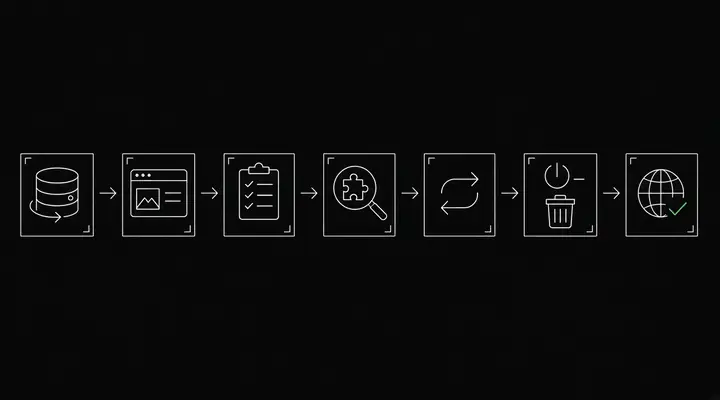
- Take a full backup of files and database, and check you can restore it.
- Copy the site to staging. Do the swap there first.
- Write down what the plugin actually does on your site: which pages use it, which settings you changed, what data it stores.
- Pick an alternative. Look for one with recent updates and a "tested up to" version close to your WordPress version.
- Move the settings and data across, then test every page and form that relied on the old plugin.
- Deactivate the old plugin, test again, then delete it. A deactivated plugin's files are still on the server.
- Repeat the change on the live site, ideally at a quiet time.
Some notes on the three examples:
Easy Google Fonts: if you use a block theme, WordPress 6.5 added a Font Library that installs local and Google Fonts across the site from the Site Editor. That may cover what you used the plugin for. Classic themes need another route.
Advanced CF7 DB: it stores Contact Form 7 submissions in the database. Flamingo also stores Contact Form 7 messages, and Takayuki Miyoshi, the author of Contact Form 7, is one of its contributors. Flamingo stores new messages. Export or back up your existing entries before you remove the old plugin, so you don't lose your submission history.
OptionTree: many themes use it for their options panels, so removing it can break the theme. Check with the theme developer first. If the theme is no longer maintained, you may need to rebuild the theme.
Not sure what's on your site?
Our free scan lists the WordPress plugin versions your homepage shows and checks them against known vulnerabilities. It can't see every plugin, so treat it as a first pass alongside the checks above. Run a free scan.
Related: is my WordPress site hacked? A step-by-step check, and how to remove malware from a WordPress site.
Sources
- Plugin Developer FAQ, "What happens when a plugin is closed?": https://developer.wordpress.org/plugins/wordpress-org/plugin-developer-faq/
- Alerts and Warnings (closure notices, the 60 day reason update, reasons list): https://developer.wordpress.org/plugins/wordpress-org/alerts-and-warnings/
- Detailed Plugin Guidelines (security issues and closure, guideline 18): https://developer.wordpress.org/plugins/wordpress-org/detailed-plugin-guidelines/
- Easy Google Fonts: https://wordpress.org/plugins/easy-google-fonts/
- Advanced CF7 DB / Vsourz Form Entries for Contact Form 7: https://wordpress.org/plugins/advanced-cf7-db/
- OptionTree: https://wordpress.org/plugins/option-tree/
- WordPress.org plugins API, checked 1 Nov 2026: https://api.wordpress.org/plugins/info/1.2/?action=plugin_information&slug=option-tree
- Patchstack, closed plugins not shown in wp-admin: https://patchstack.com/articles/security-implications-of-wordpress-repository-access-restrictions-and-plugin-closures/
- Core draft PR #7671, closed status on plugins.php: https://github.com/WordPress/wordpress-develop/pull/7671
- WP-CLI
wp plugin list: https://developer.wordpress.org/cli/commands/plugin/list/ - WordPress 6.5 release post (Font Library): https://wordpress.org/news/2024/04/regina/
- Flamingo: https://wordpress.org/plugins/flamingo/
Further reading
- Free website malware checks compared: CrawlCare, Sucuri SiteCheck, VirusTotal
- WordPress 7.1.4: what it means for your site
- Prime Mover CVE-2026-115806: check your version
- Duplicator CVE-2026-82814: are you affected?
- Google says "This site may be hacked": what it means and how to clear it
- LiteSpeed Cache 7.9.2: check for CVE-2026-113499 and friends
- Is my PHP version end of life? How to upgrade WordPress
- PHP2Shell: what PHP's emergency release means for your site
- Core Web Vitals assessment failed: what it means and how to pass
- UpdraftCentral hack: is your WordPress site affected?
- Rank Math PRO 3.0.123, Backuply and Everest Backup: is your site affected?
- AIOSEO and Bricksforge security updates: is your site affected?
- Why is my website slow?
- How to fix Core Web Vitals
- Why isn't my site showing on Google?
- How to check your website SEO for free: a 10-minute checklist
- Is your site slow because of the code or the distance? Hosting for South African sites
- Is my WordPress site hacked? A step-by-step check
- How to remove malware from a WordPress site (step by step)
- The UpdraftPlus hack: what to check on your WordPress site now