How to check if your WordPress site is still getting security updates
Published 4 Nov 2026
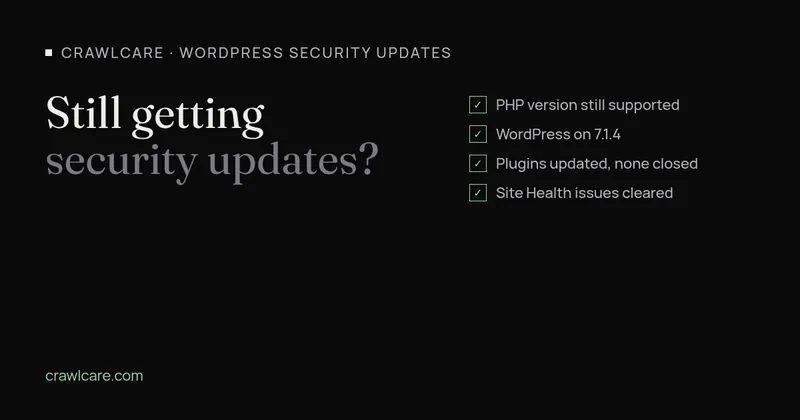
A WordPress site can look perfectly fine from the front and still be running software nobody patches any more. The parts to check are PHP, WordPress itself and your plugins. You can check all three from your dashboard in about fifteen minutes, without any technical tools.
1. Check your PHP version
PHP is the language WordPress runs on, and your host provides it. Each PHP branch gets security fixes for a fixed period, then stops.
To find yours, go to Tools > Site Health, open the Info tab and expand Server. The PHP version is listed there.
Then compare it against php.net's list of supported versions. As of early November 2026:
- PHP 8.5 gets security fixes until 31 December 2029.
- PHP 8.4 gets security fixes until 31 December 2028.
- PHP 8.3 gets security fixes until 31 December 2027.
- PHP 8.2 gets security fixes until 31 December 2026, so it has under two months left.
- PHP 8.1 stopped on 31 December 2025, 8.0 on 26 November 2023 and 7.4 on 28 November 2022.
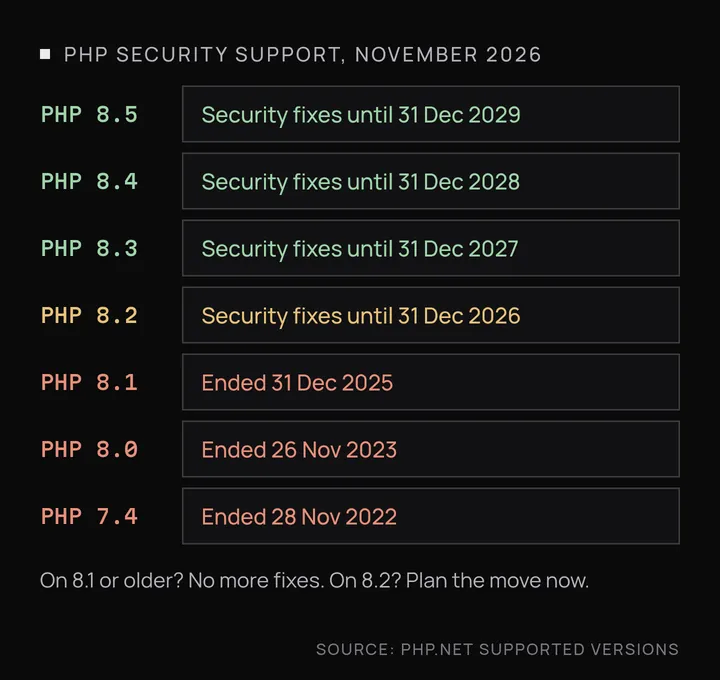
If you're on 8.1 or older, your PHP no longer gets any fixes. If you're on 8.2, plan the move now. Most hosts let you change the PHP version in their control panel, but test on a staging copy first, because older plugins and themes sometimes break on a newer PHP.
2. Check your WordPress version
WordPress's own hardening guide says it plainly: "Older versions of WordPress are not maintained with security updates." The latest release is 7.1.4.
Your version shows in Dashboard > Updates, and at the bottom right of most admin screens. If an update is waiting there, take a backup and then run it. If your site is a few major versions behind, updates were usually switched off at some point, or something on the site broke when someone tried to update. Find out which before you push ahead.
3. Check your plugins on WordPress.org
Plugins are where most of the risk sits, because there are many of them and each one is maintained, or not, by a different developer.
Go to Plugins > Installed Plugins and note anything with an update waiting. Then look up each plugin on wordpress.org/plugins and check three things on its page:
- When it was last updated. The date is in the sidebar. A plugin last updated years ago isn't necessarily dangerous, but nobody may be watching it for bugs.
- The "not tested" warning. WordPress.org adds a notice to plugins that don't support the last three major WordPress releases.
- A closed notice. When a plugin is closed, its page says so, and closures after January 2018 include a date. Reasons include an author request, a guideline breach, a licensing problem and a security issue. WordPress.org doesn't publish the details, so treat any closed plugin as one to replace (more on that in what to do when a plugin is closed).
A closed plugin stops getting updates through your dashboard, and WordPress won't tell you it's been closed. The plugin page is the place to look.
Remove plugins you've deactivated and don't plan to use again. Deactivated plugins still sit on the server, and they're easy to forget about when updating.
4. Run Site Health
Tools > Site Health has a Status tab that sorts its findings into critical issues, recommended improvements and passed tests. WordPress's documentation lists security-related checks among them, including:
- Background updates not working as expected, which means WordPress may not apply a security release on its own.
- Could not reach WordPress.org, which stops the site checking for and installing updates.
- Plugins waiting to be updated.
- An outdated PHP version.
Deal with anything under critical issues first. The Info tab also has a button that copies the full report, which is handy if you want someone else to look.
What to do with the results
If everything is current, put a reminder in the diary to check again in a month. If something is out of date:
- Take a full backup of files and database.
- Update on a staging copy if your host offers one.
- Update WordPress, then plugins and themes, then PHP.
- Replace closed or abandoned plugins with maintained ones.
Want a second opinion?
If you'd rather not do this alone, or the checks turned up something you're not sure about, have a chat with us or run a free scan. We'll tell you what we find in plain English.
Further reading
- Is your vet website still on Universal Analytics or an old cache plugin?
- Chrome says your WordPress sitemap uses XSLT. Your SEO is fine.
- Gravity Forms 3.1.2 flaw (CVE-2026-103039): how to check your site and fix it
- WordPress plugin closed on wordpress.org? What to do now
- Free website malware checks compared: CrawlCare, Sucuri SiteCheck, VirusTotal
- WordPress 7.1.4: what it means for your site
- Prime Mover CVE-2026-115806: check your version
- Duplicator CVE-2026-82814: are you affected?
- Google says "This site may be hacked": what it means and how to clear it
- LiteSpeed Cache 7.9.2: check for CVE-2026-113499 and friends
- Is my PHP version end of life? How to upgrade WordPress
- PHP2Shell: what PHP's emergency release means for your site
- Core Web Vitals assessment failed: what it means and how to pass
- UpdraftCentral hack: is your WordPress site affected?
- Rank Math PRO 3.0.123, Backuply and Everest Backup: is your site affected?
- AIOSEO and Bricksforge security updates: is your site affected?
- Why is my website slow?
- How to fix Core Web Vitals
- Why isn't my site showing on Google?
- How to check your website SEO for free: a 10-minute checklist
- Is your site slow because of the code or the distance? Hosting for South African sites
- Is my WordPress site hacked? A step-by-step check
- How to remove malware from a WordPress site (step by step)
- The UpdraftPlus hack: what to check on your WordPress site now
- php2shell: CISA says the PHP flaws are being exploited. Three checks for your site
- WP Project Manager CVE-2026-116512: a public exploit is out, here's what to check